CargoOrder guide: unloading order, support and truck balance
Plan a two-stop load, distinguish placement errors from support and crush failures, and revise the item named by the dispatch report.
CargoOrder rules and controls · Play CargoOrder
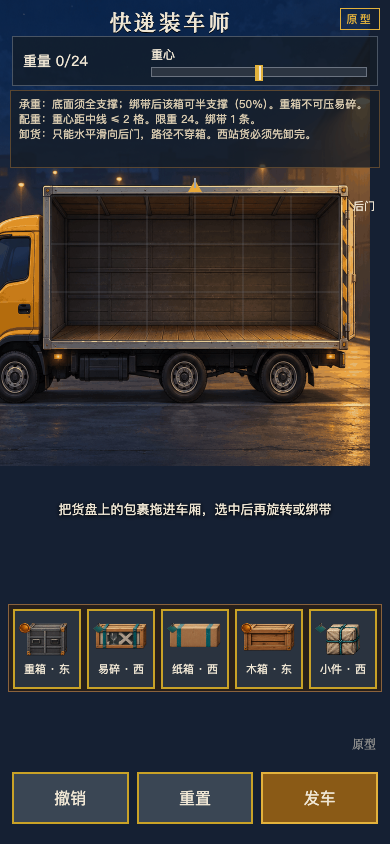
Solve the journey before filling the truck
CargoOrder is one loading puzzle with two unloading stops. Start by reading each package destination and the truck limits. A packed rectangle can still fail if an early-stop item cannot be removed or a heavy load sits in the wrong place. Treat floor space, unloading order and balance as simultaneous requirements.
Before dragging the first tile, decide which packages need access at the first stop and where the heaviest pieces could sit without resting on fragile cargo. This is a planning suggestion, not a claim that one fixed arrangement is the only solution.
Placement permission is only the first check
Drag a package into the bay and inspect the highlighted cells. An out-of-bounds tile needs a new position or orientation. An overlapping tile needs free space. Rotate the selected item where the controls allow it, and check its footprint again after the rotation.
A drop being accepted does not establish that the complete load is safe. The game separately checks support and crushing. For example, a heavy item can fit within the bay without overlapping anything, yet still rest directly on a fragile package. The error category tells you which relationship to change.
Separate support from straps and crushing
A package above the floor needs enough supporting cells beneath it. Moving a lower package can therefore invalidate an upper item even when the upper item did not move. Check both levels after rearranging a stack.
Strapping changes the support requirement in the game, but it does not erase every other loading rule. A strapped package can still be badly supported, and a strap does not turn fragile cargo into a suitable base for heavy cargo. Use a strap to address the displayed support problem, then read the remaining checks.
Recheck weight and balance after every heavy move
The weight and centre-of-mass displays answer different questions. A load can be within the total weight limit while its distribution is unacceptable. Rotating or shifting a heavy item changes the distribution, so a previously acceptable reading needs checking again.
If dispatch reports a balance failure, revise a heavy placement and inspect the new reading before rebuilding the whole bay. If it reports access at an unloading stop, inspect the packages obstructing that destination. Respond to the reported constraint instead of using the same change for every failure.
Use dispatch feedback to make a controlled revision
Check bounds and overlap, support, fragile cargo, weight, balance and stop order before dispatching. On failure, use the named item and highlighted contact area to choose a small revision. Undo is useful when that revision creates a second problem; Reset is for starting the plan again.
The available release is a single two-stop prototype. A useful improvement is a load that passes its actual dispatch checks, rather than an imagined score for filling every visible gap.
Continue playing
One loading-order prototype with two unloading stops and explicit weight, balance and cargo-protection rules.
Try the next attempt in CargoOrder. For a different game, browse the guide library. Report a rule that no longer matches the game through player support.